Migrate from Magento (Adobe Commerce) to Shopify
Liberate your e-commerce brand from Magento captivity and unlock the limitless scalability that Shopify offers.
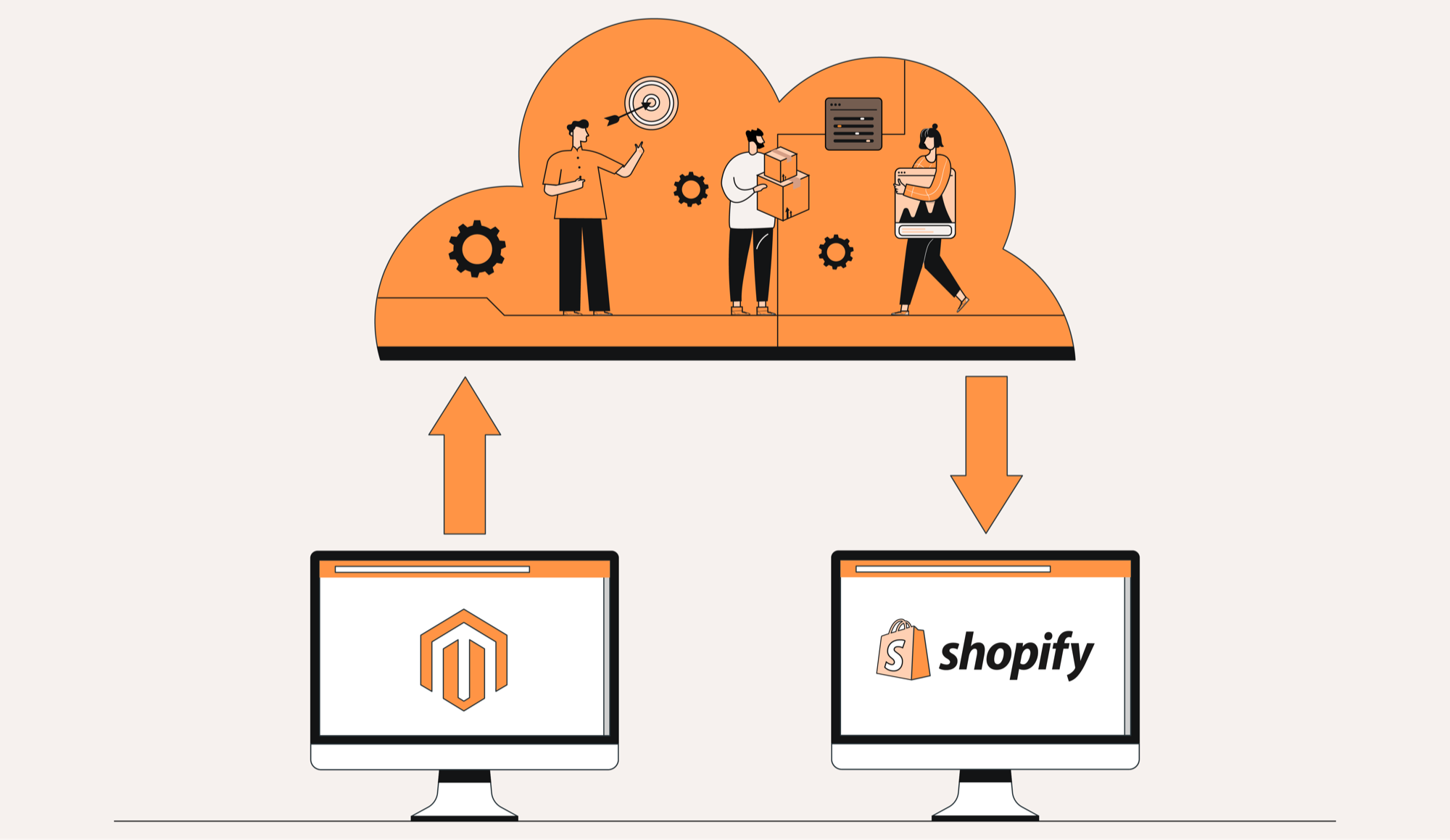
Choosing the right e-commerce platform can be daunting with options like Shopify, BigCommerce, WooCommerce, and Magento (or Adobe Commerce) available. However, Shopify stands out due to its scalability, extensive features, and rapid growth. Continuously updated, Shopify and Shopify Plus offer a competitive edge over competitors like Magento.
When migrating from Magento to Shopify, meticulous execution is vital to avoid issues. Our guide covers crucial aspects such as products, URLs, orders, customers, database management, collections or categories, tags, and more. Discover our Shopify migration services for a smooth transition.
Why Migrate Your Store to Shopify from Magento
With the platform evolving rapidly in recent years, now is an opportune time to transition from Magento to Shopify.
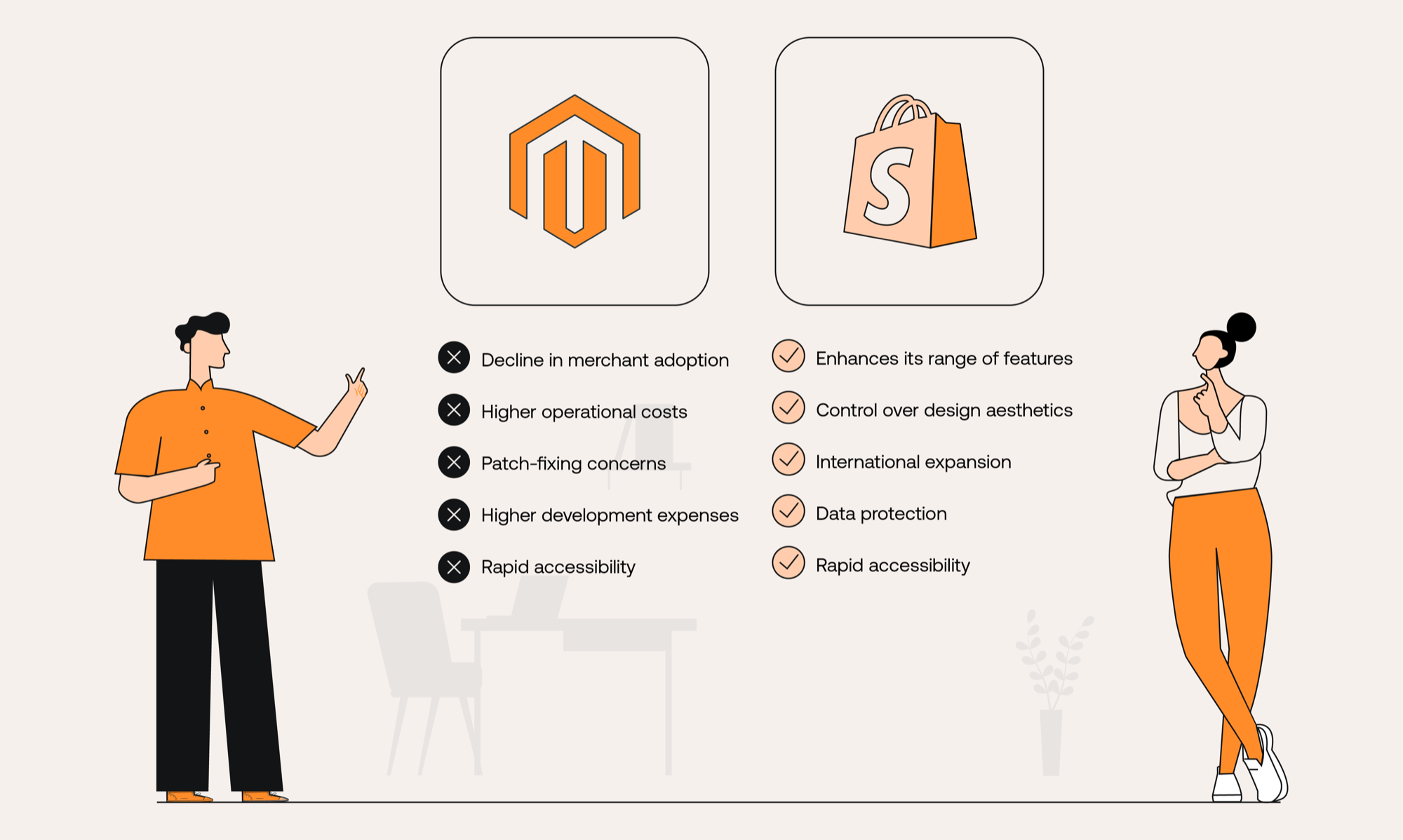
- Shopify consistently enhances its range of apps, add-ons, and features, elevating the capabilities of online stores across various sizes and shapes. This positions it ahead of competitors like Magento, enabling merchants to provide exceptional user experiences.
- With superior control over design aesthetics and extensive opportunities for international expansion, Shopify offers a compelling proposition.
- Additionally, its swift and highly secure hosting infrastructure ensures robust data protection and rapid accessibility.
Migrating from Magento to Shopify or Shopify Plus signifies a substantial investment in the growth and advancement of your online business. BuiltWith's e-commerce trends indicate a notable increase in stores opting for Shopify, while Magento experiences a decline in merchant adoption. Many merchants choose to migrate from Magento to Shopify due to lower operational costs, alleviation of patch-fixing concerns, and typically reduced development expenses.
How to Migrate to Shopify from Magento
1. Set up a Shopify Account
To migrate from Magento to Shopify, start by setting up a Shopify account and selecting a suitable pricing plan based on your business size and needs:
- Basic Shopify (A$42/month): Ideal for new e-commerce ventures with occasional in-person sales.
- Shopify (A$114/month): Suited for growing businesses already selling online or in-store, like Magento.
- Advanced Shopify (A$431/month): Tailored for scaling businesses requiring advanced reporting.
For detailed pricing information, refer to the Shopify website. If you're a large business considering migration, Shopify Plus offers extensive features (starting at US$2,300/month on a 3-year term).
2. Create a Backup of Your Magento Store
Before transferring data from Magento to Shopify, it's vital to create database and media backups to establish a restore point in the event of any mishaps during the migration. To create a backup of your Magento store, navigate to the Admin sidebar, then ‘System’ > ‘Tools’ > ‘Backups’. From there, select the desired backup type:
- System Backup (comprehensive backup of your database and file system)
- Database and Media Backup (including customer information and product photos)
- Database Backup
Although your hosting provider might offer automatic backups, it's wise to create your own to establish a restore point in case of migration issues. During migration, prioritise minimising customer disruptions and maintaining comprehensive backups to address any potential issues.
3. Download the Data Import App for Shopify
After backing up your store, the next step in migrating from Magento to Shopify is installing a data-importing app. While some data such as products can be directly imported into Shopify, others like blog posts and previous orders require Shopify's API.
Matrixify is a recommended app for this purpose, allowing bulk import/export via CSV or XML files for various data types. The primary challenge lies in preparing your data in a format compatible with Matrixify for Shopify import—more details on this will be provided later.
4. Export Your Data from Magento
The next steps involve exporting your data from Magento to prepare for import into Shopify. You'll need to export essential data like products, collections, categories, customers, orders, blog posts, pages, and page URLs to set up redirects. Magento offers a bulk export feature, recommended for use.
To export your data from Magento 2:
- Go to "System" > "Data Transfer" > "Export" in the Admin sidebar.
- Set "Entity Type" to "Products" in the "Export Settings" section.
- Keep the default CSV format and click "Continue."
All exported files are typically located in the /var/export folder, or /import_export/export folder if the remote storage module is enabled. You may also need to access the media folder via your hosting provider or FTP.
This process can be complex, so seeking expert assistance is recommended if you're not comfortable with it.
5. Import Your Magento Store Data into Shopify
Your data is now prepared for import into Shopify. Follow these steps:
- Visit the Shopify admin page and navigate to ‘Apps’ > ‘Import Store’.
- Choose Magento from the drop-down menu.
- Upload your exported files under ‘Upload Files’ by clicking ‘Add file’.
- Select the Magento file you downloaded.
- Finally, click ‘Continue import’ followed by ‘Import’.
It's worth noting that while Shopify enables direct import of certain data types through its admin page, others may require third-party apps like Matrixify or utilise the Shopify API for importation. Whether you opt for a third-party app or not, ensuring error-free data is crucial to prevent import corruption or errors.
6. Review Your Imported Magento Store Data
Always double-check your imported data for any overlooked or missing items. Shopify simplifies this review process, allowing easy identification and correction of errors in your imported data. If some products or customers didn't import successfully, you can manually add them from the 'Products' or 'Customers' option on the admin page.
During your Magento to Shopify migration, you might encounter the following issues, where manual rectification will be required.
- Successful import with minor data changes
- Historical orders
- Bundled products failed to import
- Imported products not published
- Imported products lack dimensions
- Product variants failed to import
7. Design Your New Shopify Store
Now that your store has smoothly transitioned from Magento to Shopify and your data has been meticulously vetted, it's time for the final touch: designing your new Shopify store. Unlike Magento, Shopify provides enhanced control over aesthetics, offering a diverse range of customisable themes to align with your brand's identity.
Designing your store to offer a distinctive customer experience is vital for distinguishing yourself and fostering sales and customer loyalty. Enhance it with Conversion Rate Optimisation (CRO) principles to foster a seamless browsing journey and positive customer experience on your website, ultimately driving more conversions.
Explore our Conversion Rate Optimisation (CRO) service to see how our skilled strategists at Matter Design & Digital can craft a tailored design with optimised CRO strategies for your brand. Keep in mind, you'll need to select a new theme or have one custom-made, as the coding languages between Magento and Shopify differ.

Need help in the Magento to Shopify migration process?
While Shopify simplifies the Magento to Shopify migration process, complexities arise for large or intricate e-commerce stores. Specialised developers may be required for extensive data transfer via APIs, ensuring access to vital resources. Importing metafield data and product reviews, along with setting up advanced apps and integrations, presents additional challenges.
At Matter Design & Digital, our Shopify experts provide comprehensive support throughout the migration journey, from technical data transfers to optimising store content and custom web design.
Contact us to discuss your migration project or any questions you may have.